
Mastercard Crypto Credential is a service that replaces long and complex wallet addresses with a simple, human-readable alias (username). This helps users send and receive cryptocurrency more easily and securely. This feature is currently available only on the Bybit App.
How to Register for Mastercard Crypto Credential
How to Send Funds
How to Receive Funds
How to Check Transaction Records
How to Manage Your Addresses
How to Register for Mastercard Crypto Credential
Step 1: From the Bybit Pay page, tap the banner Mastercard Crypto Credential, then tap Register.
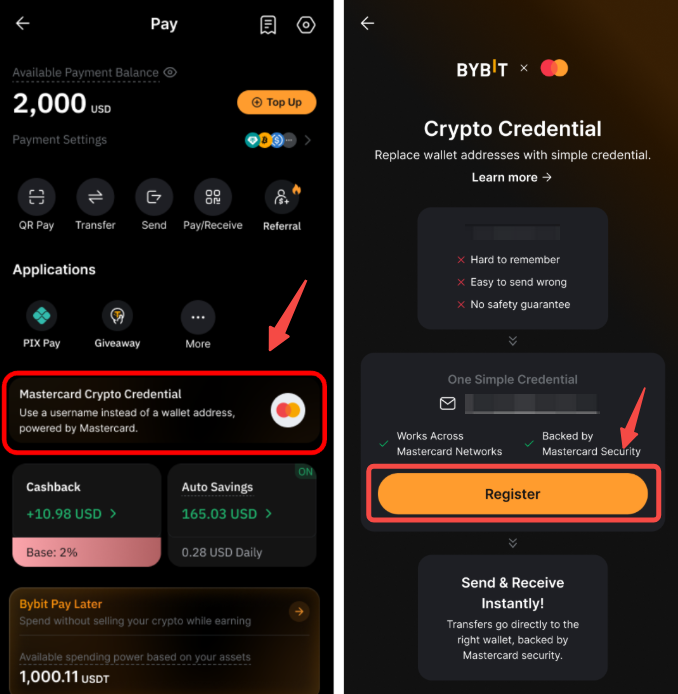
Note: To learn more about how to use Bybit Pay, please refer to this article.
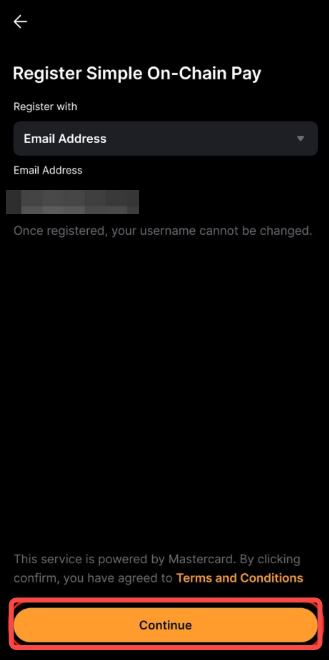
Step 2: Choose the Email Address or Mobile Number registered with Bybit and click on Continue.
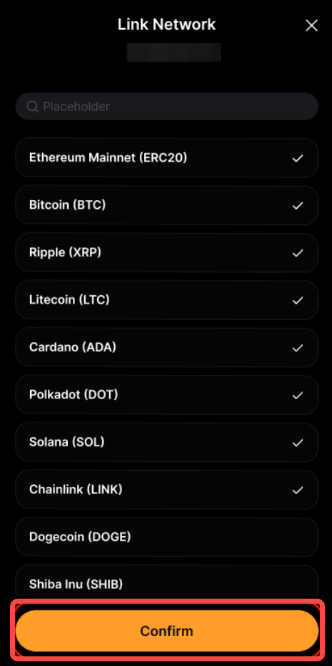
Step 3: Select your referred networks and tap Confirm to proceed. Bybit will automatically suggest the networks you most commonly use.
After completing the registration, you can tap Share to invite your friends to register via an invitation link.

How to Send Funds
Step 1: Tap Send from the Bybit Pay page and choose to send via Bybit ID, Email, or Phone Number.
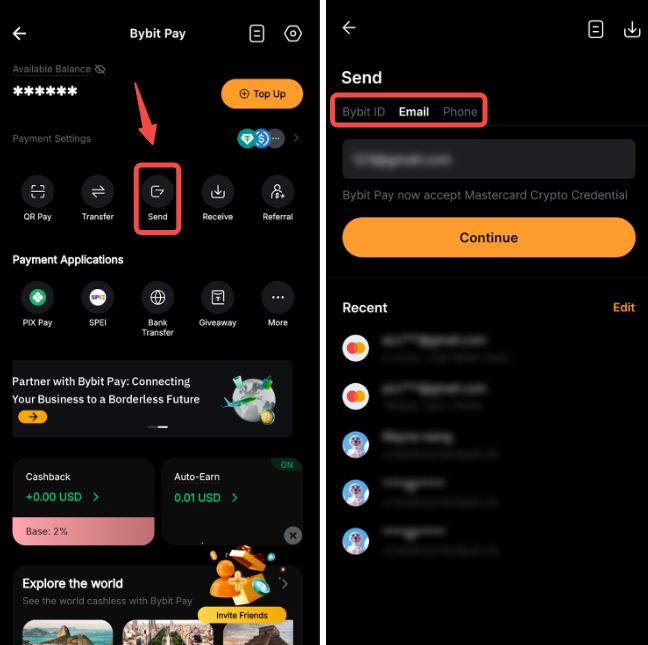
Note: Please note that if you select Bybit ID, the funds will only be sent through Internal Transfer.
Step 2: If the recipient is already registered with Mastercard Crypto Credential, the system will display a confirmation pop-up. Tap Confirm to proceed.

Notes:
- If your recipient is not registered with Mastercard Crypto Credential yet, you can share your invitation link for the account registration before submitting a new transaction request.
- If your recipient is a Bybit user, the assets will only be sent through Internal Transfer, whether they have a Mastercard Crypto Credential account or not.
Step 3: Select the Email Address or Mobile Number, then tap Continue to save it as a Mastercard Crypto Credential.
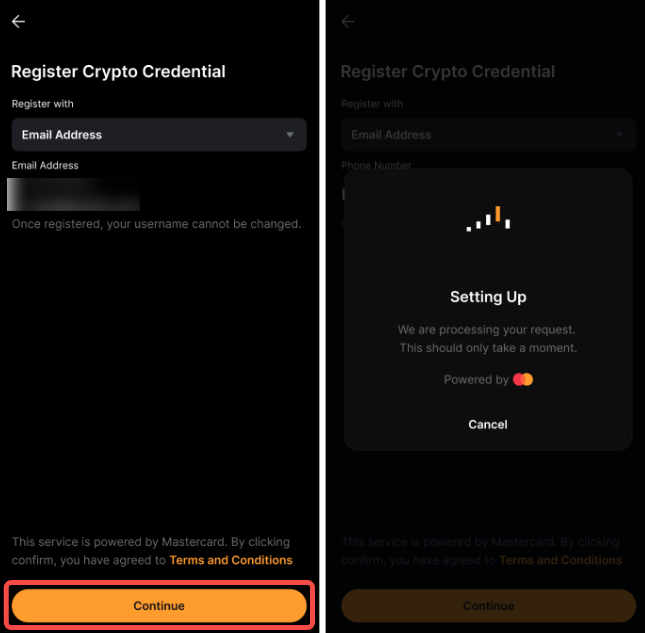
Step 4: Select the cryptocurrency, confirm the network and enter the amount you wish to send, then tap Continue.

Notes:
- A minimum withdrawal amount will be displayed. Please review the details before proceeding.
- If the transaction requires a Tag/Memo (e.g., XRP/XYM/XLM/XEM), please ensure it is filled in correctly to avoid asset loss.
- Only the list of supported cryptocurrencies and networks on your recipient’s Mastercard Crypto Credential will be visible.
Step 5: Review your transaction details before tapping Confirm and enter your Google Authenticator code to complete the request.
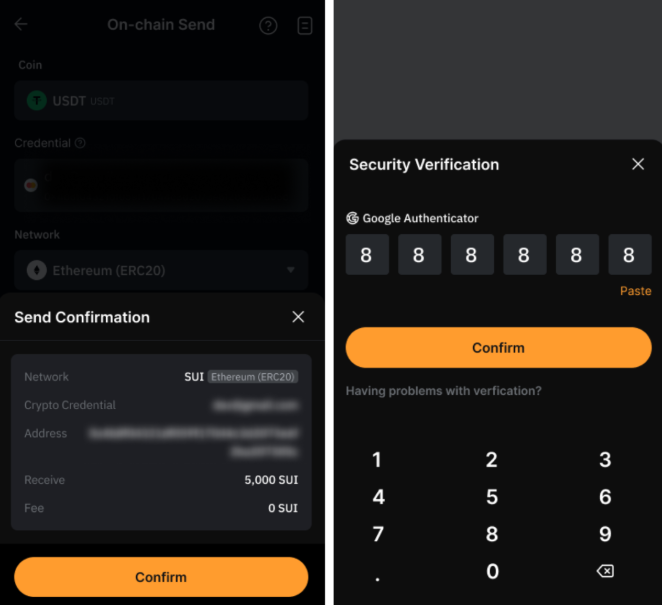
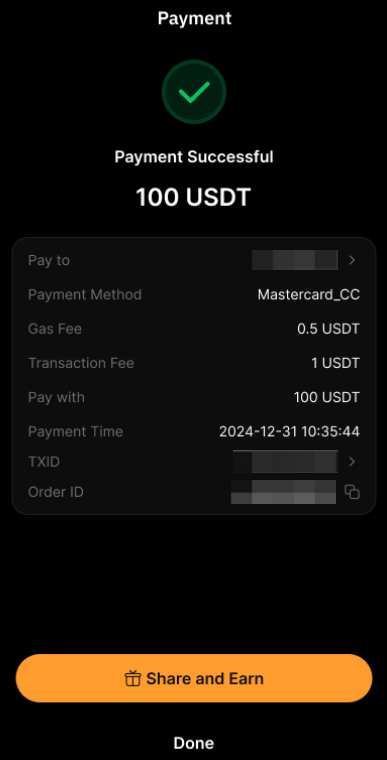
Your transfer request has been successfully submitted!
How to Receive Funds
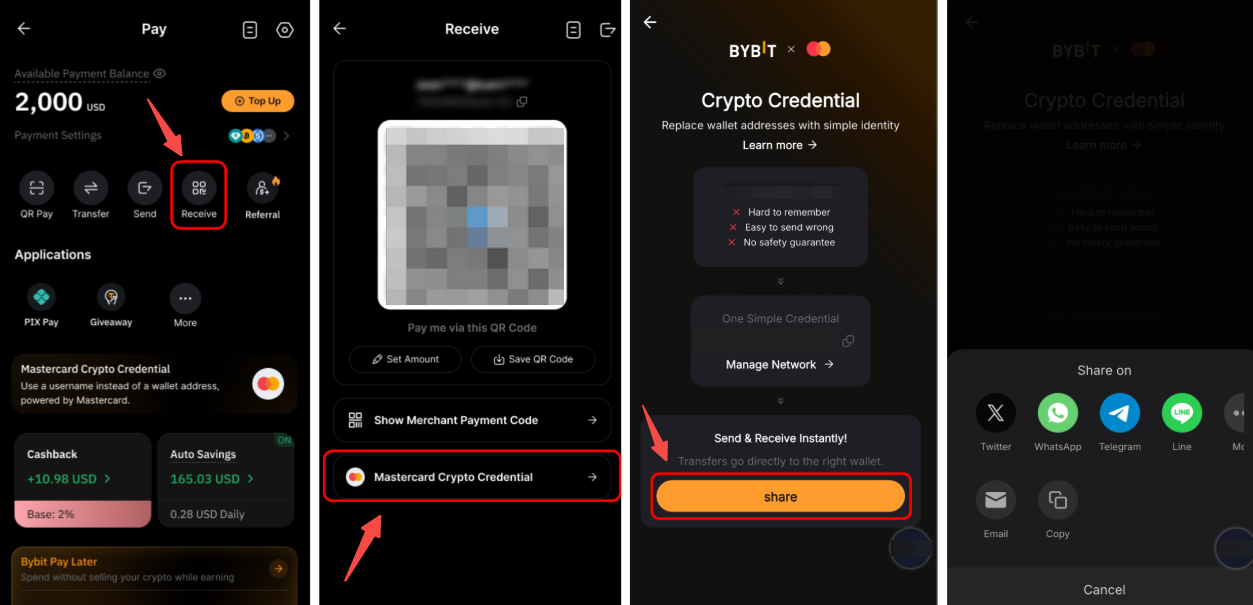
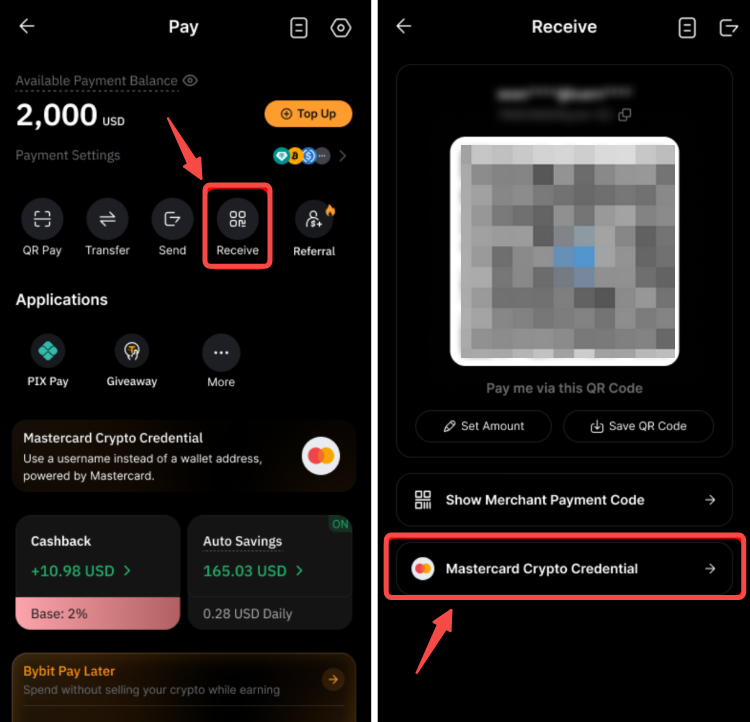
Tap Receive on the Bybit Pay page, then tap on Mastercard Crypto Credential. Tap Share to share your receiving request on your social media or send it as a link to the sender.
How to Check Transaction Records
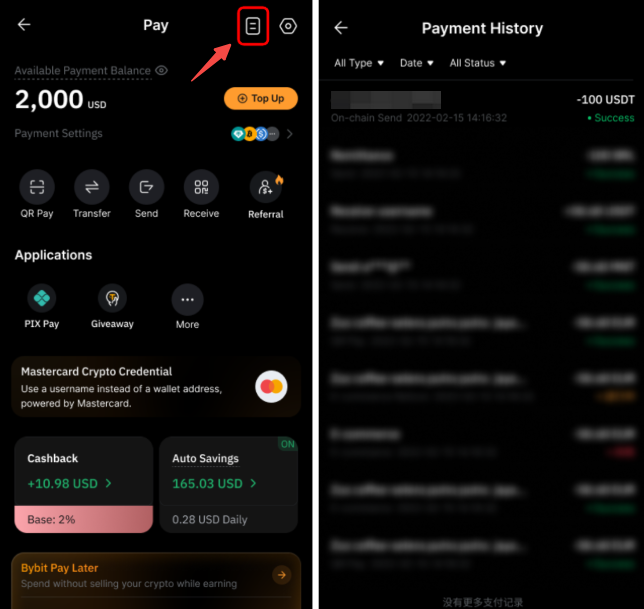
Go to the Bybit Pay page and tap the Payment History icon located in the upper-right corner.
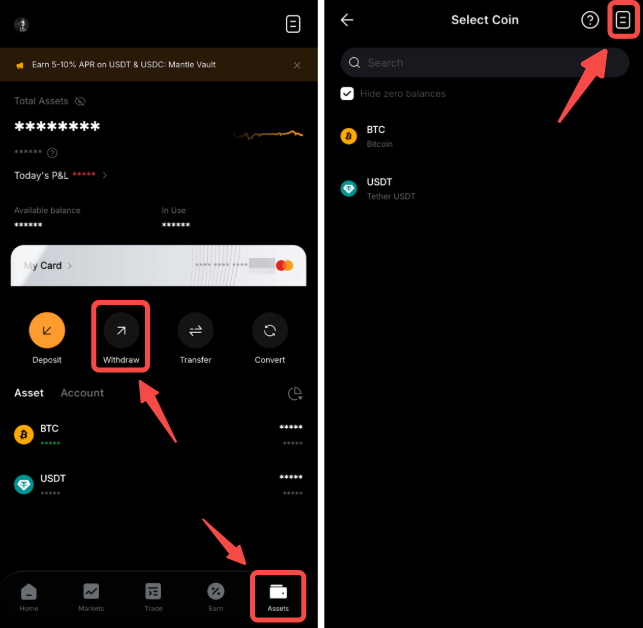
If your transaction was made via Internal Transfer, you can view the transaction details by navigating to Assets → Withdraw → Asset History.
How to Manage Your Addresses
Address Management allows you to link your frequently used blockchain networks for quicker and easier access. To link a new network, please follow the steps below:
Step 1: Go to the Receive page, then tap Mastercard Crypto Credential.
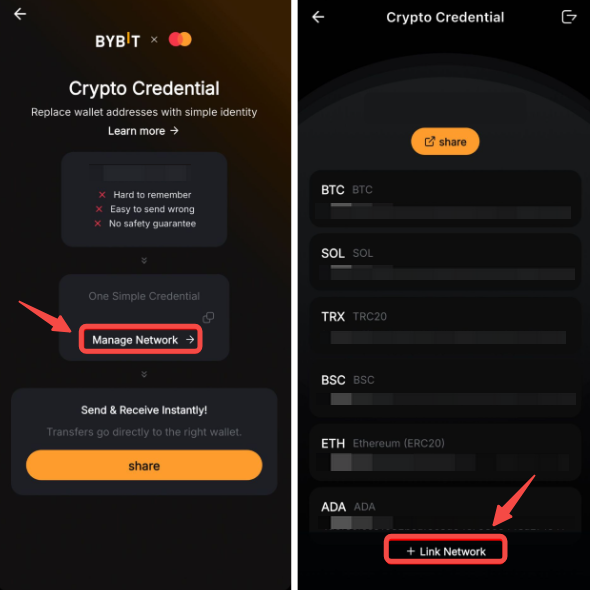
Step 2: Tap on Manage Network → Link Network.
Step 3: Enter the network name in the search bar, select the desired network, and then tap Confirm to link with your Mastercard Crypto Credential.
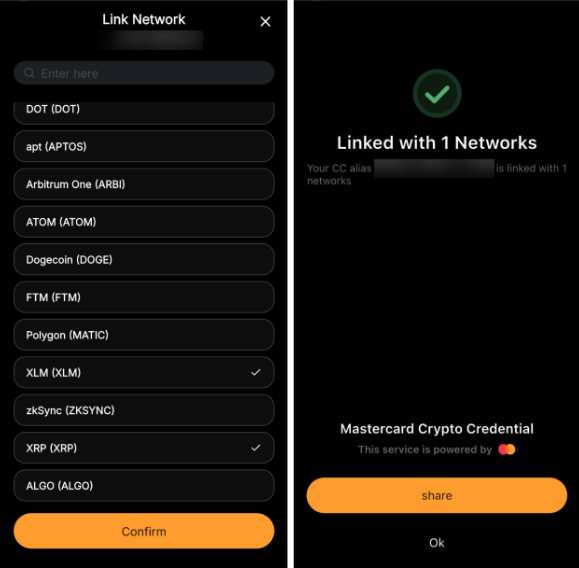
Note: Once a network has been added to Address Management, it cannot be deleted.